Study of Workflows in CRM 2013
The screen-caps 0f Workflows in CRM 2013 might have stirred up some excitement in you! Well, let’s see what the differences are and what they mean in terms of functionality.
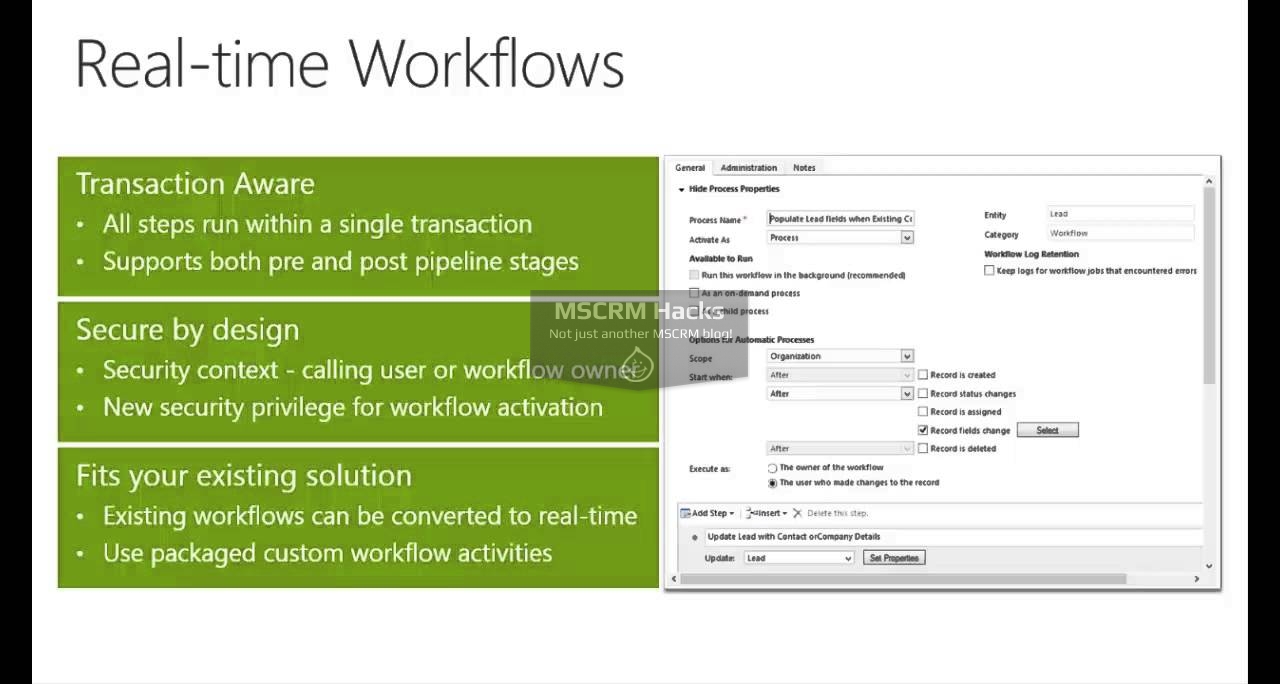
The first thing that grabs our attention is the check box stating ‘Run this workflow in the background (recommended)’ while creating a workflow. As pointed out in the beginning, CRM 2013 allows you to have real-time workflows. This means, if you keep this check box unchecked, the workflow will run synchronously else it will run in asynchronous mode.

If we select the workflow to run in background (asynchronous mode), the screen that we have in front of us one additional option when compared with that of CRM 2011. This is “Workflow Job Retention”. The check box “Automatically delete completed workflow jobs (save disk space)” is more or less self explanatory. It basically asks whether to delete the job instances from the CRM database, so that the “AsyncOperationBase” table doesn’t become too large leading to slow CRM performance. This was an inherent problem in CRM 4.0 and 2011, the fix for which was provided in this Microsoft KB article.

However, if we plan to have the workflow executed in real time, there are a quite a couple of options available. Similar to the previous feature, we have “Workflow log retention” here as well. The “Keep logs for workflow jobs that encountered errors” allow you to monitor workflows and retain logs for failed workflows.

For viewing the error log for a specific real time workflow, open it up and click on the “Process Session” link. This will show any errors logged for this workflow. In order to view all the errors for any real-time workflow, you can go to “Advanced Find” and create a view showing errors on the “Process Session” entity.


The second feature we can fiddle with, in real time workflows is the section “Options for automatic action”. Since real time workflows trigger as soon as an action is performed, Microsoft has provided us with the capability to trigger the workflow before or after the action. This is pretty much similar to how we registered Plugins in CRM for pre-operation (stage 20) and post-operation (stage 40). For status changes, assignments and field changes (update) you can select the workflow to trigger either before or after the action happens. The “before” is particularly useful if you want to check the values and prevent further execution. However, for create and delete you can have the workflows triggering only after and before the action respectively. You will see the options, but they remain disabled. I am not sure why Microsoft provided these read-only drop-downs. Maybe just to inform the business user when the workflow will be triggered for create and update.

The last but not the least, the most interesting feature that we have available for real time workflows is the “Execute as” option. Remember, for Plugins we had “Run in user’s context” option where we could impersonate the user or run the Plugin in the current user’s context? Well, that’s exactly what Microsoft has provided us with here. Till CRM 2011, workflows only ran in the impersonation mode of the user who created and published them. In CRM 2013, we have the option of running the workflow in the current user’s context (the user who’s actually performing the action) by selecting “The user who made changes to the record”. I, personally, feel this feature in real time workflow package is enough to say “bye bye plugins!” for most of our requirements!

Have something to add?
Be First to Comment
No Trackbacks.